Turn static 3DGS scans into immersive web products
Moshpit Studio
Moshpit Studio turns 3D Gaussian splat scans into places people can walk through in a browser. I lead the engineering team that builds it: the editor, the viewer, and the embeds that put a scene on any website.
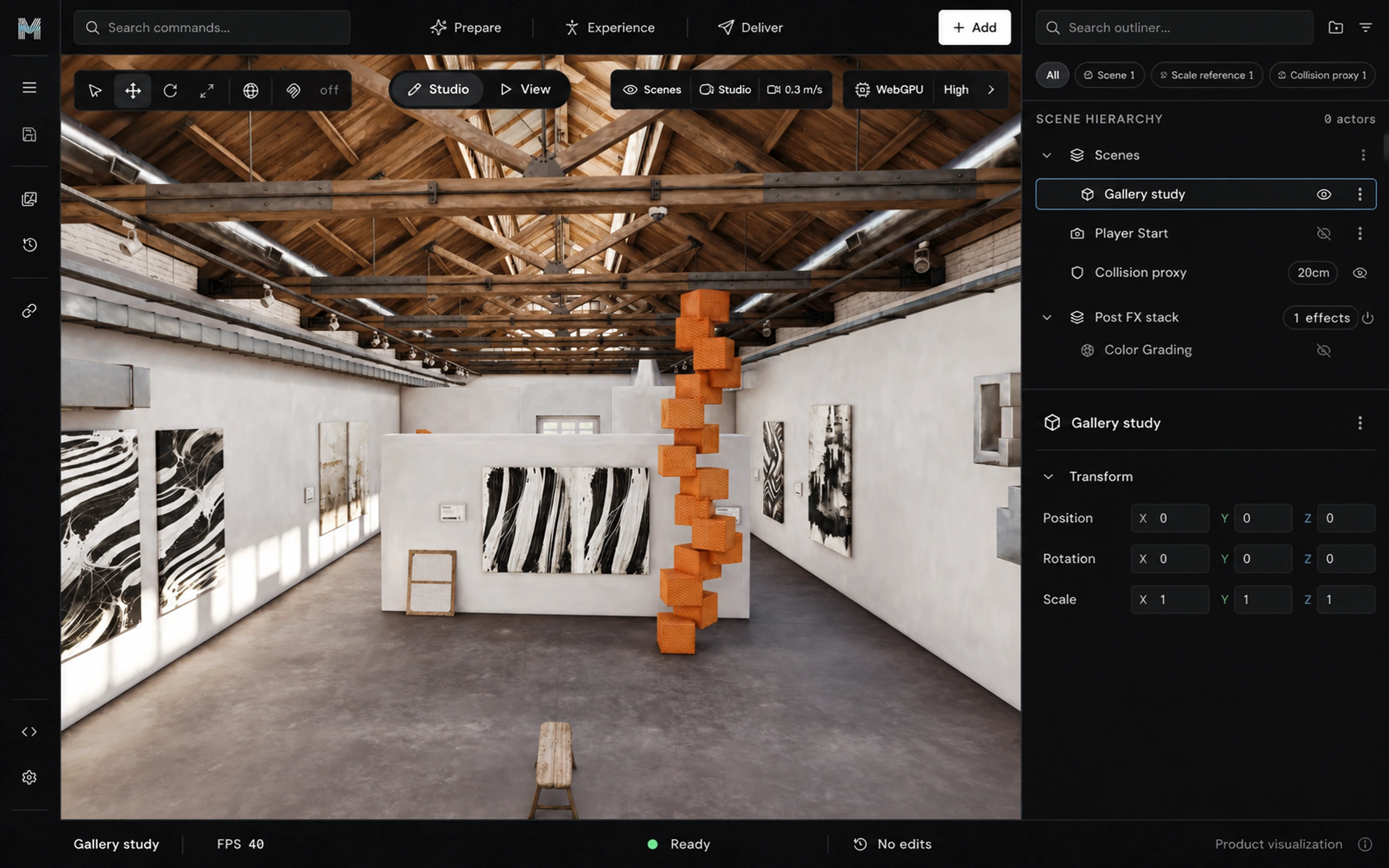
StudioThe same capture inside the editor, ready to grade, animate, and publish.
About Moshpit Studio
Moshpit Studio is a browser editor for 3D Gaussian splat scans. You import a capture, grade it, animate it on a timeline, and publish it as a link or an embed, without a game engine or a download.
I lead the engineering team that builds it: the editor and viewer, the rendering and post-effects pipeline, and the sharing and embed layer that puts a scene on other websites.
- 13Effects in the post-effects stack, per moshpit.studio
- 3Splat formats it imports: .ply, .ksplat, and .sog
- 4Stages, from directing a scene to distributing it
- 7Engineers on the team I lead
Four stages, one scene
Studio is built around four stages, each with its own tools. The rest of this page follows one demo scene, Gallery study, through all of them.
 Color GradingExposure+0.12Temperature+0.42Saturation1.1801
Direct it
Art-direct the captureGrade it, shape the atmosphere, and keyframe the camera.
- WASDEye height · 1.60 m02
Enter it
Walk it. Activate it.Momentum, collision, and camera height, with triggers and waypoints.
- Share linkCopiedYouGuest03
Share it
Bring people insideOne link that opens on any screen, with other people in the scene.
<iframe src="…">04Distribute it
Publish anywhereEmbed the viewer or the editor, or drive scenes from the REST API.
One workspace, part by part
Scroll through the list and the selection box moves to the part of the editor being described.
- 01 · Command bar
Prepare, Experience, Deliver
The top bar follows a project from start to finish: prepare the capture, build the experience around it, then deliver it. Search commands reaches every action from the keyboard.
- 02 · Viewport tools
Tools that stay out of the way
Move, rotate, and scale sit on the left. Studio and View switch between editing and walking. Camera speed and render quality float over the capture instead of taking space beside it.
- 03 · Viewport
The capture is the scene
The viewport shows a 3D Gaussian splat scan rendered live, not a video or a panorama. You can orbit it, walk through it, and grade it.
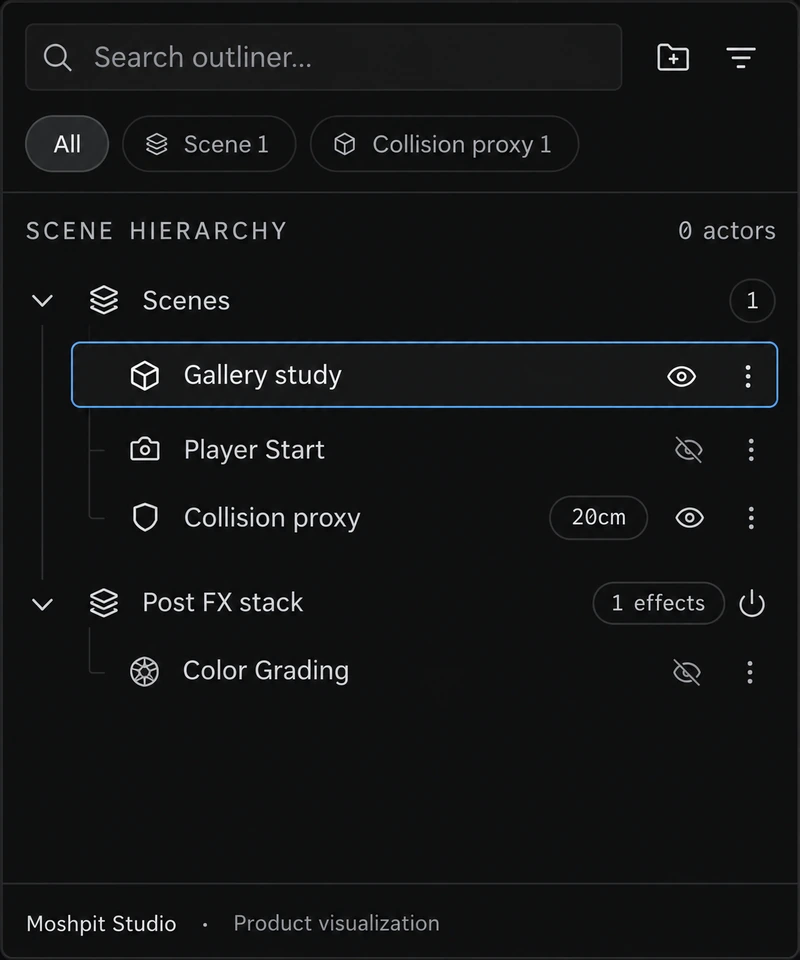
- 04 · Outliner
Everything in one hierarchy
Scenes, the player start, the collision proxy, and the post-effects stack share one tree. Each row has its own visibility toggle and menu.
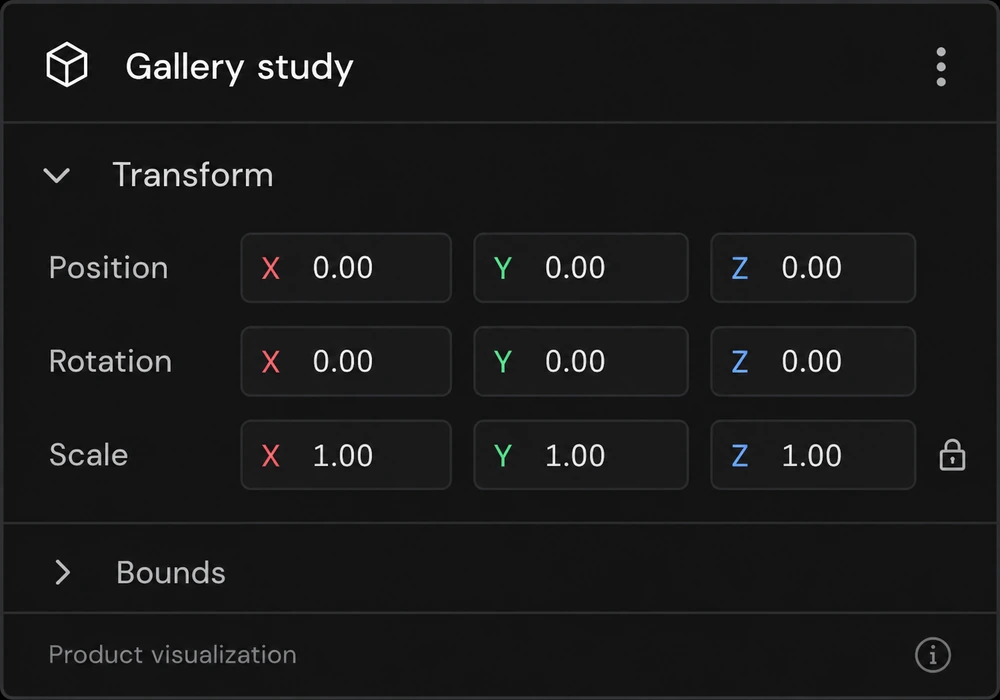
- 05 · Properties
Exact values when you need them
Select a row and its transform opens below: position, rotation, and scale on three axes, typed or dragged.
- 06 · Status bar
State, always in view
The scene name, frame rate, render state, and edit history stay in the footer, so nobody has to wonder whether a change saved.
Build a look, not a filter
Color grading is one of 13 effects in the post-effects stack, and the effects stack in order like layers. Drag the split to compare against the raw capture, pick a look, or move the sliders. The preview runs a grading pass in WebGL, in this page.
Animate the scene on a real timeline
The camera, the grade, and the focus each get a track of keyframes, and Studio eases between them as it plays. Drag the playhead to scrub through Gallery walkthrough, or let it run.
- Camera
- 1.00×
- Temperature
- 0.00
- Focus
- Off
Out of the editor, into the scene
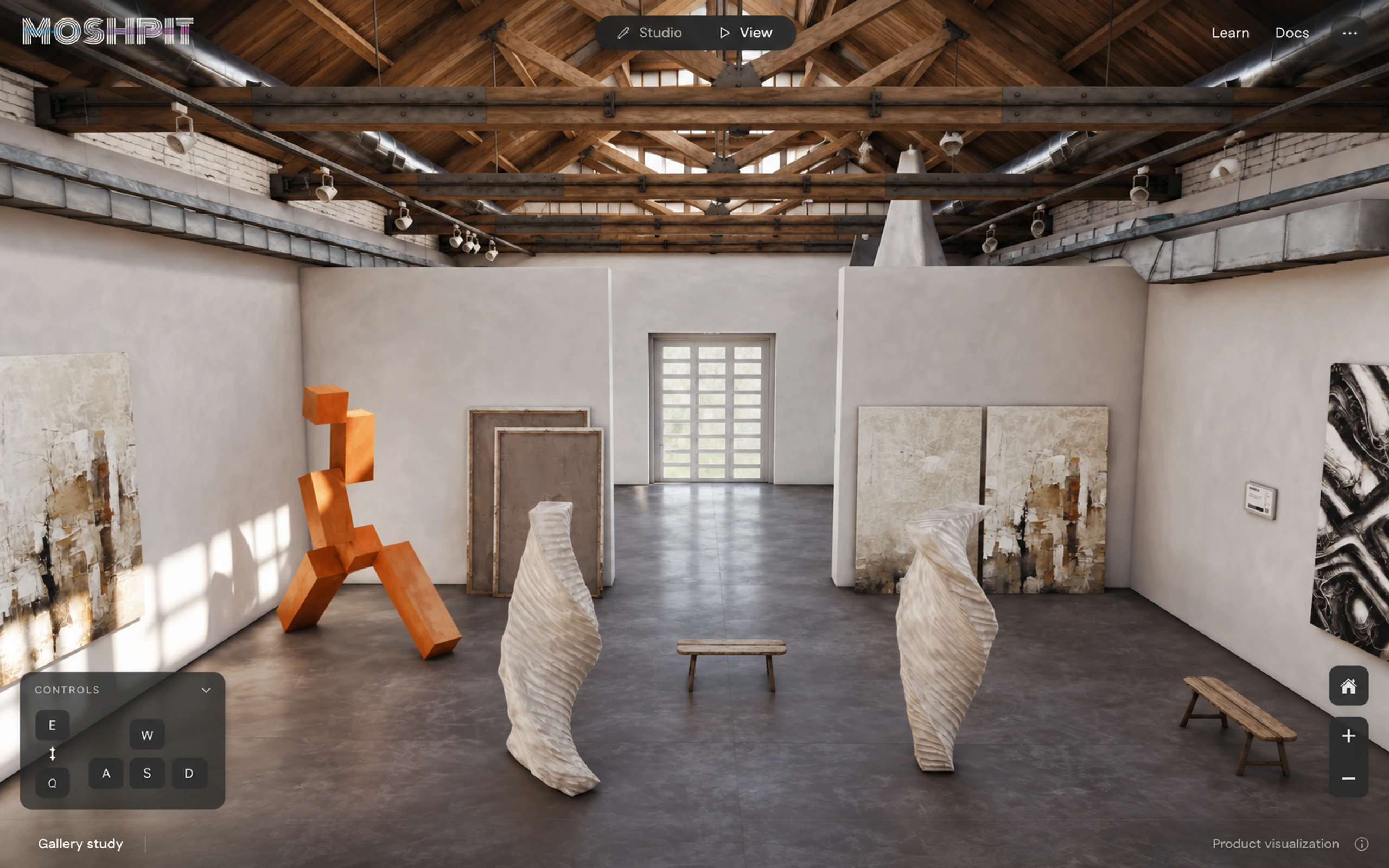
Studio and View sit side by side in the toolbar. View turns the capture into a place to walk, with momentum, collision, and camera height. Switch to View, click the scene, and move with W, A, S, and D. Q and E change height.

- Speed
- 0.0 m/s
- Eye height
- 1.60 m
One link. Every screen.
A scene opens in the viewer on desktop and mobile browsers, with nothing to install, and adaptive streaming sends each device the detail it can draw. The preview below is real splats: switch the screen and the quality to see how many your browser is drawing.
Five screens, one scene
Product visualizations of Studio with the demo scene. Select a screen to see it full size.
- 01EditorThe workspace: outliner, properties, and the capture between them.
- 02ViewerWalk mode, with the controls folded into one corner.
- 03Scene libraryEvery scene, filtered by owner and visibility.
- 04TimelineKeyframes for camera, grading, and focus under the viewport.
- 05SettingsTitle, visibility, the preview link, and embed code.
Eight components, each on its own
Every panel in the editor is a self-contained component. Here they are outside the workspace, with the same demo scene. Select one to see it full size.
- scene-outliner
- color-grading
- transform-inspector
- scene-card
- timeline-strip
- viewer-controls
- project-sharing
- render-quality
What it runs on
Studio app
- Next.js
- React 19
- TypeScript
- Zustand
- Tailwind CSS
- Radix UI
Rendering
- three.js
- WebGPU
- WebGL 2
- WGSL & GLSL
- Web Workers
Scenes & delivery
- .ply · .ksplat · .sog
- Level of detail
- AWS S3
- CloudFront
Platform
- Node.js
- NestJS
- MongoDB
- REST API
- Turborepo